

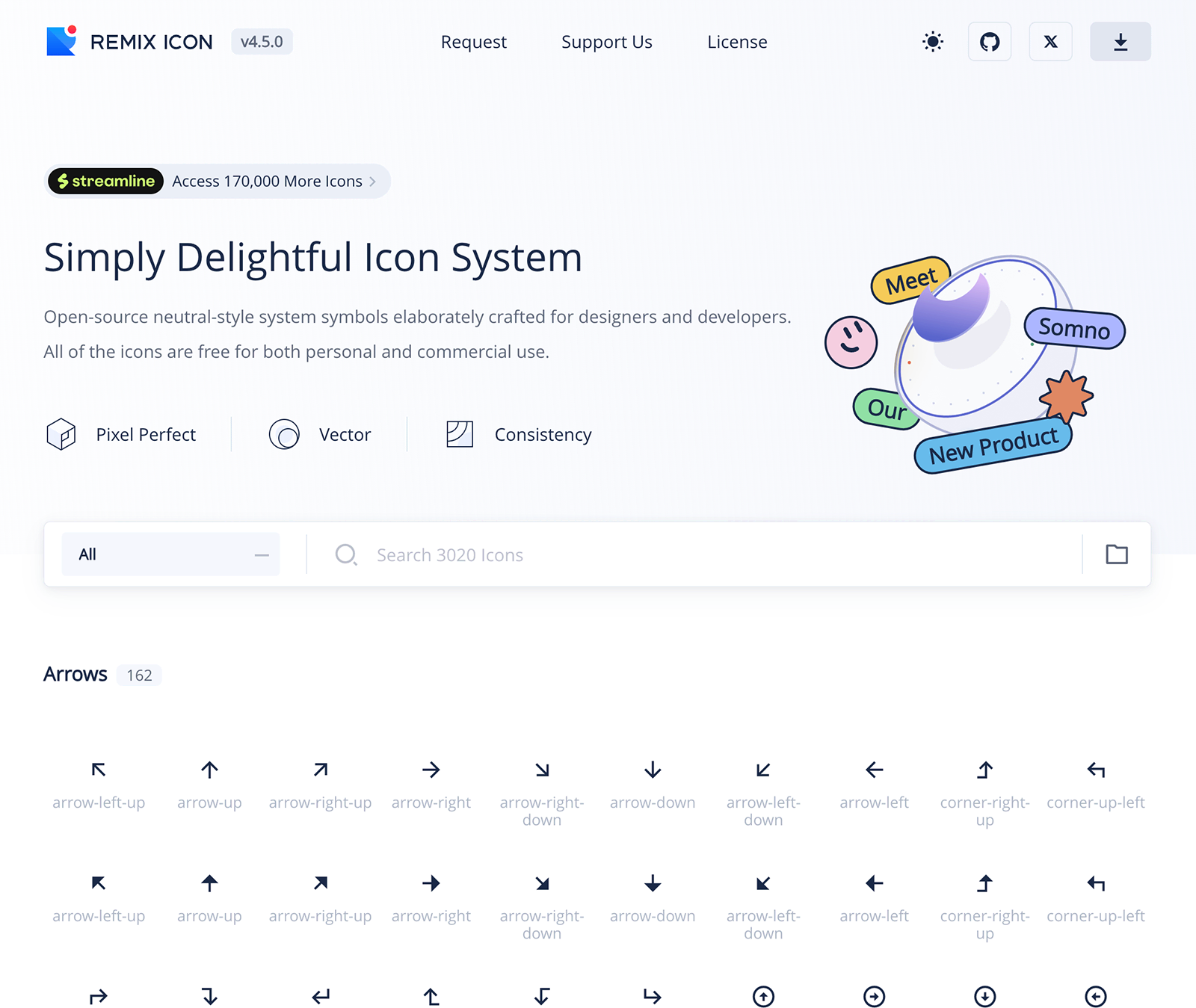
RemixIcon is licensed based on the Apache License and all rights of products are reserved for RemixIcon.
Features
Extensive Icon Options
Choose from over 1000 icons in the RemixIcon library for any design need.
Customizable Appearance
Supports filled (solid) styles and flexible size and color customization.
Consistent Naming
Matches RemixIcon naming conventions for intuitive use and recognition.
Integration Ready
Easily combine icons with components like buttons to enhance functionality.
Icons List
The full list of available icons can be found on the RemixIcon website. TheIconDownload component is one example from this collection, but you can use other icons by importing and rendering them in a similar way.
Each icon is name the same as the Remix version but without -line or -fill at the end. For example, arrow-up-line and arrow-up-fill will share the component name of <IconArrowUp />.
Importing Icons from Node Modules
Import icons from"@robojuice/velure-ui/src/icons".
Example
Basic Usage
To use theIconUpload component, simply include it in your Vue component:
Filled Icon
To render the icon in a filled (solid) style:Props
boolean
default:"false"
Applies a filled (solid) style to the icon.
Integrating Icons in Buttons
You can use the icons with other components, such as buttons:Notes
- Make sure the RemixIcon library is installed and properly configured in your project.
- To use custom icons, you may need to adjust styling (e.g., size, color) with CSS or inline styles.
- Refer to the RemixIcon documentation for additional options and examples.